
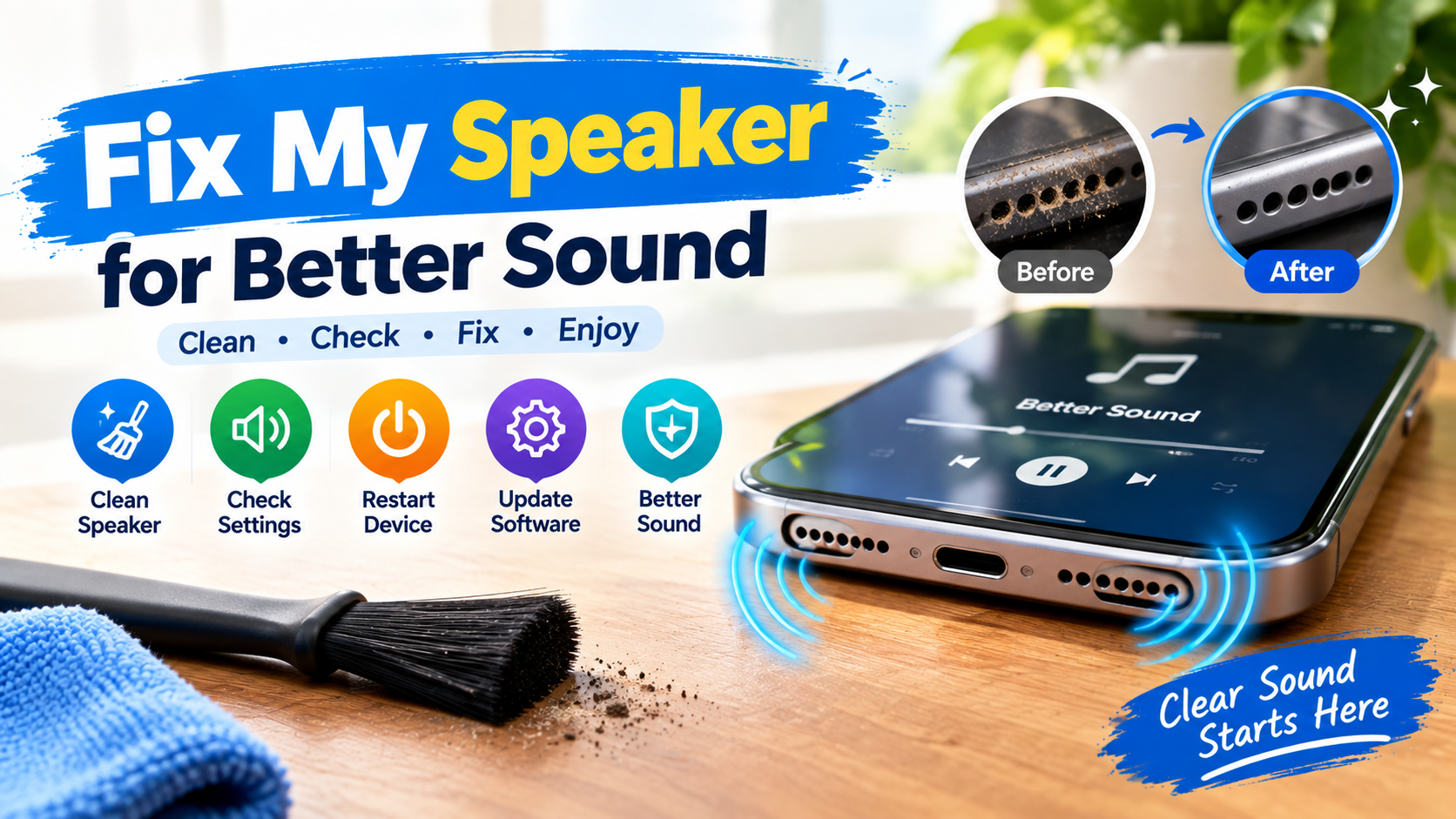
Poor sound from your phone or other device can be frustrating, especially when the speaker suddenly becomes quiet, muffled, or distorted. If you are wondering, Fix My Speaker problems can often be solved with a few simple checks before you consider professional help. Dust, blocked speaker openings, software issues, moisture, and damaged hardware can all affect sound quality.
The good news is that many speaker problems do not require complicated tools. You can start by checking your volume settings, cleaning the speaker carefully, restarting your device, and testing different audio sources. These simple steps can help you find the cause and restore clearer sound.
Why Is My Speaker Sounding Bad?
Before trying to fix the problem, it helps to understand what may be causing it. A speaker can become weak or unclear for several reasons.
Common causes include:
- Dust or dirt covering the speaker grille
- Water or moisture near the speaker
- Low or incorrect volume settings
- Temporary software problems
- Bluetooth devices connected in the background
- Damaged speaker components
- Poor-quality audio files
- A phone case blocking the speaker opening
If the sound became worse suddenly, think about what happened before the issue started. For example, dropping your phone may point to hardware damage, while muffled sound after outdoor use could be caused by dirt or moisture.
Fix My Speaker With Basic Checks
Start with the easiest solutions before trying anything complicated. First, increase the media volume and make sure the device is not muted. Play a video or song to check whether the problem affects all audio or only one application.
Next, disconnect Bluetooth headphones, speakers, or other wireless devices. Your phone may still be sending sound to a connected device instead of its built-in speaker.
Restarting the phone is another useful step. A temporary software glitch can sometimes affect audio output, and a simple restart may bring the speaker back to normal.
Clean the Speaker Carefully
Dust and small particles can collect inside the speaker grille over time. This can make audio sound quiet, dull, or distorted. Cleaning the opening gently may improve the sound without requiring repairs.
A soft, dry brush can help remove loose dust from the grille. You can also use a clean, dry microfiber cloth around the outside of the speaker area.
Avoid pushing sharp objects into the speaker holes. Do not pour liquid directly onto the speaker, even if you think it needs deep cleaning.
A Phone Speaker Cleaner can also be useful when used carefully. The main goal is to remove surface dust without damaging the delicate speaker components.
Check for Water or Moisture
Moisture is another common reason for muffled audio. If your device has recently been exposed to rain, splashes, or high humidity, give it time to dry naturally.
Keep the phone in a dry, well-ventilated place and avoid using excessive heat. Hair dryers and other hot air sources can damage internal components.
Do not charge a wet device until you are confident that the charging area is dry. If the sound remains distorted after the device has dried, professional inspection may be necessary.
Try Different Audio Sources
Sometimes the speaker is not actually the problem. A damaged video, low-quality recording, or application issue can make sound appear worse than it really is.
Play several different sources, such as:
- A music track
- A YouTube video
- A phone ringtone
- A recorded voice note
- An alarm sound
If only one application produces poor audio, check its settings or update the app. If every sound is weak or distorted, the issue is more likely connected to the device itself.
Update Your Phone Software
Software updates can fix bugs that affect different parts of a device, including audio performance. Check whether your phone has a pending system update and install it when available.
After updating, restart the device and test the speaker again. Also check individual application permissions and sound settings if the issue happens only with specific apps.
Fix My Speaker When Basic Steps Fail
If cleaning, restarting, checking settings, and updating the software do not help, the speaker may have a hardware problem. A fall, impact, liquid exposure, or long-term wear can damage internal speaker components.
Warning signs include:
- Severe distortion at normal volume
- Crackling sounds
- No sound from any application
- Sound that cuts in and out
- A speaker that became weak after physical damage
At this point, avoid opening the device yourself unless you have the right experience. Incorrect repairs can cause additional damage.
Prevent Future Speaker Problems
Keeping the speaker clean can help maintain good sound over time. Avoid storing your phone in dusty places and keep it away from unnecessary moisture.
A protective case should also leave the speaker openings clear. Check the grille occasionally and remove visible dust gently rather than allowing buildup to continue.
It is also helpful to avoid playing audio at maximum volume for long periods. Extremely high volume can place extra stress on small speaker components.
Conclusion
When you want to Fix My Speaker for better sound, start with simple solutions such as checking volume settings, disconnecting Bluetooth, restarting the device, and cleaning the speaker grille. A carefully used Phone Speaker Cleaner may help remove dust, while proper drying can help when moisture is involved.
If the speaker still sounds distorted, weak, or completely silent after these steps, the problem may be hardware-related. Getting professional help can be a safer choice than trying an uncertain repair yourself. With regular cleaning and careful use, you can also help keep your device’s speaker working clearly for longer.